
How I Tricked My ADHD Brain Into Never Losing Things Again
There are times when I just hate my ADHD brain. When I’m hyperfocused, I can take over the world but other times, things just get…lost. (“Where did I put that Thing?”)
I finally fixed that with a simple storage tracking system.
TL;DR (The simplest version)
- Get a box
- Write a number on the box
- Download Obsidian
- Create a note in Obsidian with the number of the box as the title
- Put a Thing in the box
- Capture the name of that Thing in the Obsidian note
Now you have two ways to find a Thing:
- In Obsidian, search for “Thing”. You’ll find that it’s in box 1234.
- Find the number on the box and navigate to the note named 1234 to see what’s in the box.
Sure, this sounds ridiculously simple. There’s no magic to it. But once you do it…
The great thing about this is that we tend to store Things with other, similar Things. For instance, it makes sense to put my stash of spare USB cables with other computer stuff. In the past, if I ran out of space to store the cables with my computer stuff, I might just put the cables in a random location and they would get lost. (“I’ll figure out where to put these later.” Yeah, right.)
With this method, it doesn’t matter if you store similar Things together - you can put a Thing in any box and find it easily.
Instead of thinking, “Where are my USB cables? Well, they must be with my other computer stuff,” I just launch Obsidian, perform a quick search and know exactly where they are.
Taking it further
I took this a step further with a Brother label printer, QR codes, plastic storage bins, and shelves.
My numbering system begins with “J”, so each box is numbered as “J001, J002…”, etc. The system only uses three digits. (If I need a fourth digit, I have a hoarding problem.)
Open the respective note in Obsidian, select the ellipse in the upper right corner of the note, then select Copy Path > as Obsidian URL.
In the Brother P-Touch software (Mac, Windows) or Brother iPrint & Label (iOS, Android), create a label that includes the number of the box along with a QR code. Paste the path that you just copied from Obsidian into the data field for the QR code and save it.
Print the label and stick it on the outside of the bin.
Now you have three ways to find a Thing.
- In Obsidian, search for a Thing. You’ll find out that it’s in bin 1234.
- Find the number on the box and navigate to the Obsidian note named 1234 to see what’s in the bin.
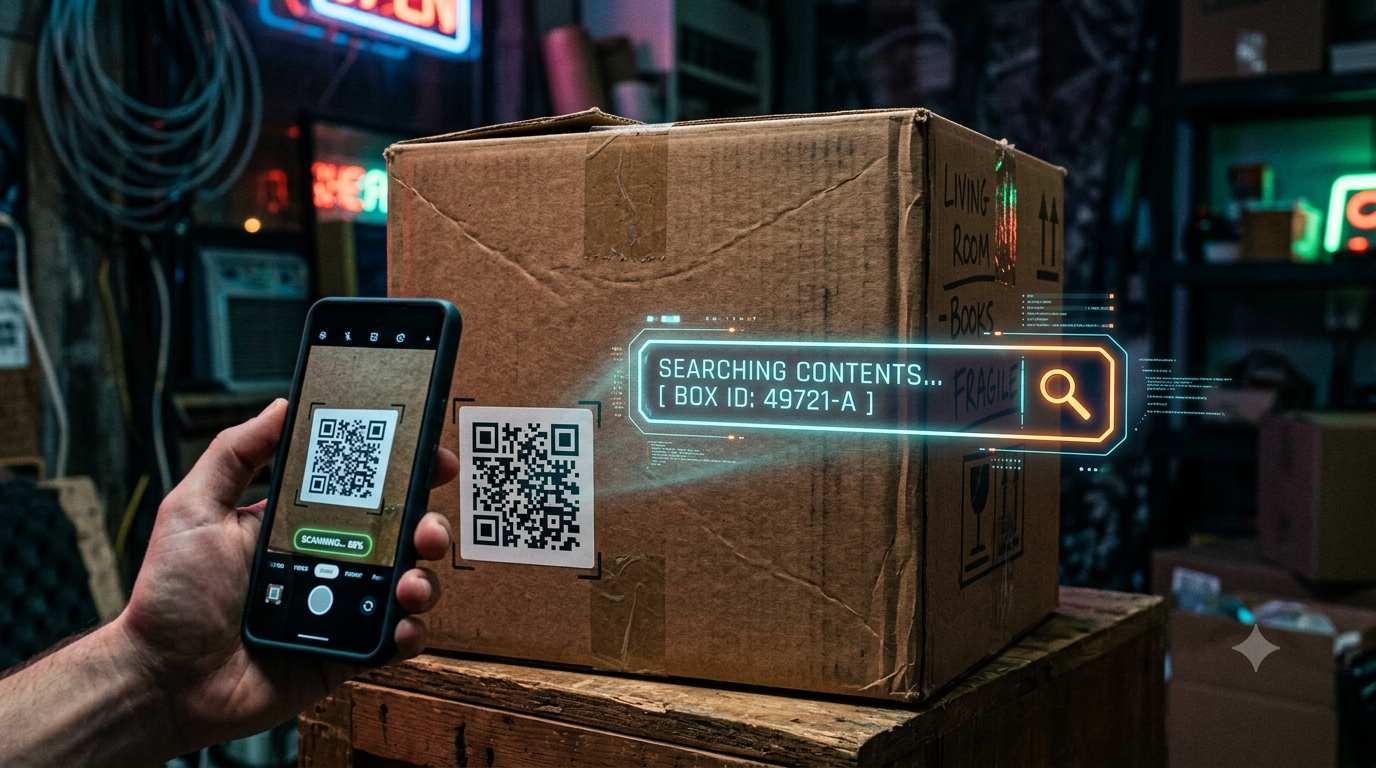
- Scan the QR code with your phone and the Obsidian note will open so you can see what’s in the bin.
If you have multiple items - for example, power strips with different cord lengths - you can add photos to your notes so you know exactly which one is in the box.
Conclusion
Getting organized like this removes cognitive load and the frustration of searching for something that you need, when you need it. What’s great about this system is that it’s practically free and rivals similar apps that you can find in the app stores. I stumbled on one with a subscription for $25/year!
Try it. You’ll be surprised how freeing it is to always being able to find a Thing.